Introducing offline playback, now available in Portal for Mac 1.4

Have you ever wanted to take Portal on an airplane or train? Or maybe you’ve been heading out into the remote wilds and longed to take Portal along? Or even just work in the local coffee shop with its spotty WiFi. If so, you’ve probably noticed that to date Portal may have been unavailable in these situations.
The big news is that Portal for Mac 1.4 changes all this by introducing support for offline downloads. This has been a commonly requested feature since launch and we are excited to make it available to all customers, even those on our free plan.
If you are using Portal for Mac v1.4.0 or later you will find a new option under the “…” menu next to the “Set Surroundings” button to download your preferred portals for use offline.

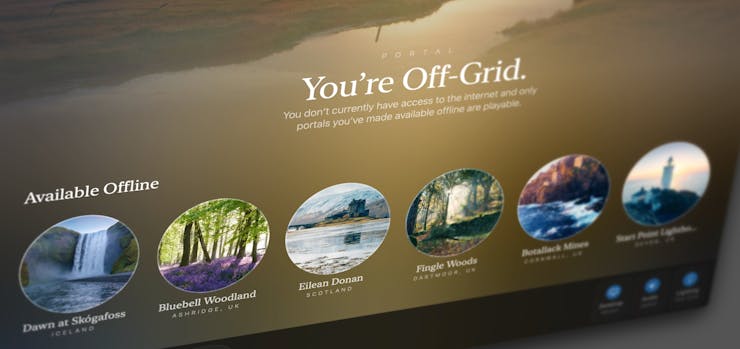
When Portal detects that you are off grid and without an internet connection, it will now show you a list of the portals that are available for offline playback.
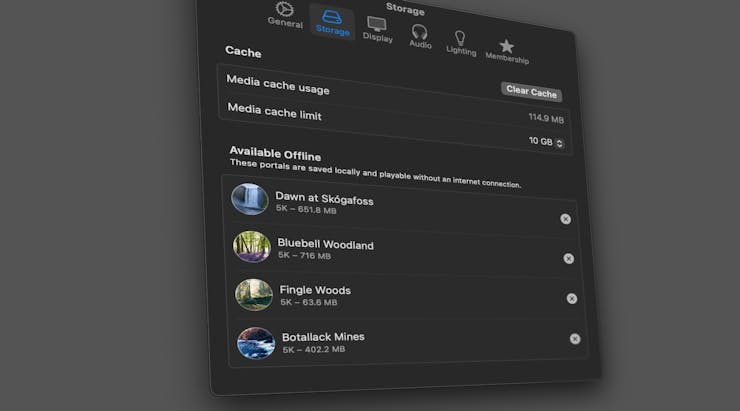
Offline downloads can be managed from the new “Storage” tab in Portal’s Settings window.
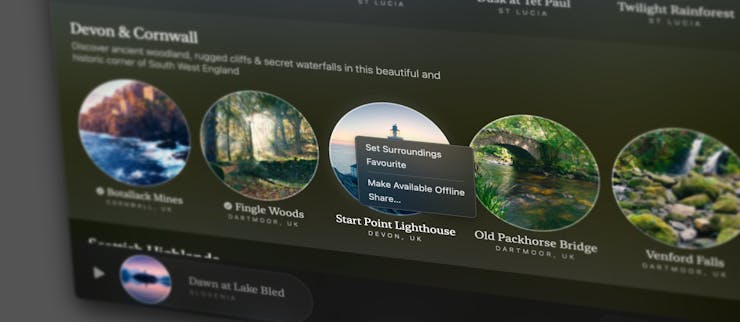
For power users who want to manage offline downloads quickly you can open the context menu anywhere you see a portal in the library and select “Make Available Offline” or “Remove Download”
That’s it. Seems simple, right? Maybe, but maybe not, if you’re interested in diving deep into how this feature works then read on...
Since launch, Portal for iOS has supported offline downloads. In fact to-date this is the only way to use Portal on iOS. Portals must be downloaded before they can be played back.
When we launched Portal on iOS back in 2019 this made a lot of sense, at the time we only had a handful of portals, there were relatively few device sizes, bandwidth was more costly and devices were way less powerful. We made the decision to always download portals locally and make Portal an “offline first” mobile experience.
This decision had its advantages, it made Portal reliably available even when offline and simplified the app because we could rely on data always being stored locally.
But it also has its drawbacks and they have become clearer over the years. As our library grew, it started to become frustrating to have to download each portal before you could use it. But another big thing also happened: screen sizes changed. When you “download” a portal on iOS you are downloading files that are optimised for the resolution of your specific device screen dimensions. This helps save bandwidth, energy use and storage space whilst giving you the best possible quality. Back in 2019 this worked perfectly, but since then Apple have added support for iPadOS window resizing, external screens and many many new device screen sizes.
When it came to making Portal for Mac we knew we needed a different approach. On Mac the same problems are even more extreme, customers use all manor of different external displays, running at different resolutions and in different orientations. We wanted to optimise for the best possible experience across all of them whilst also removing the friction of having to wait for a (potentially up-to 12K) portal to fully download first.
This is why on Mac we opted for a streaming approach. Streaming allows us to start downloading and playing back before all the content is available, this is similar to how online streaming services like Netflix work but Portal has some very specific requirements and differences to those services.
Let’s look at the differences between a Netflix movie and a portal. When you select a Netflix movie you press play, watch the movie and then move onto something else. When using portal you may press play, run the same portal for 10 hours and then end your session. It would be very bad for everyone involved if Portal spent the whole 10 hours continuously downloading 12K video!
When you watch a movie on Netflix, you press play and Netflix will often start streaming in a lower quality for fast playback, as the download progresses the quality often ramps up to match your download speed. This uses a technology called HTTP Live Streaming or HLS, which is built into all of Apple’s products but unfortunately it doesn’t really work for the Portal use-case.
To avoid having customers continuously stream 10 hours of content we carefully edit all our portals into seamless loops of varying lengths. We then stream the file for playback whilst at the same time writing it to a cache on disk, once the whole loop is available on disk we transparently switch playback from the streaming download to the cached file on disk. If we were using HLS this would mean a quality drop every time the loop repeats which would lead to a pretty ugly experience. In our testing it was better to have a portal buffer for a few seconds than play in low quality on the desktop so this is the trade-off we made.
Because of this looped caching behaviour it’s possible, by chance, you may have been lucky and been able to use Portal offline previously but this was not guaranteed because cached files can be removed by macOS at any time to free up additional disk space for more important operations.
Like on iOS, Portal for Mac also factors in screen dimensions when selecting what quality to download, we try to best match our available sizes with your current screen resolutions. Because of this it’s possible for the download stream to change during playback as you connect additional screens or change screen spanning settings. When you are online this is a seamless change but making it work offline needed some technical gymnastics.
We had to weigh up various trade-offs and make some assumptions about real world usage. When you tap “Make Available Offline” Portal will download the files that best match your current setup. For most customers this will be the best match for your current screens and audio outputs and offers a good balance between file size and quality. You can see what quality and file size each portal has downloaded in from the “Storage” tab in Settings.
If you choose to make a portal offline that already exists in your local cache the files are re-used and not re-downloaded this means that if you start playback on a portal and select “Make Available Offline” in most situations you will only be making a single download. Hopefully this also explains why the option is called “Make Available Offline” rather than “Download”, as it’s quite possible no download will be needed at all.
Once a portal is available offline playback we will always use the locally saved copy to avoid wasting your bandwidth.
So far we’ve spoken mainly about a portal’s visuals but there is a lot more that we need to make a portal truly available offline, including audio files, lighting configuration, focus data, images and text. All of these are stored and managed offline by Portal but we’ll save those stories for another day.
Wherever your next adventure may lead, you can now take Portal along for the journey.